
The DDJ-400 is not recognized even when rekordbox is launched
Perform the following checks.
1. Is DDJ-400 recognized on your computer?
Check that the name of the DDJ-400 is displayed with the following procedure.
-macOS High Sierra 10.13 / Sierra 10.12 / OS X 10.11: Open the Apple menu while pressing the [Options] key and then select [System Profiler...] > [Hardware] > [USB].
-Window 10: Right-Click the Start button. Double-click > [Device Manager] > [Sound, video and game controllers].
-Windows 8.1: Double-click [Apps View] > [Control Panel] > [Device Manager]>[Sound, video and game controllers].
-Window 7: Double-click [Start] menu > [Control Panel] > [Device Manager] >[Sound, video and game controllers ].
2. Is the USB cable connected correctly?
⇒ Connect the computer and DDJ-RB with the supplied USB cable.
3. Is a USB hub being used?
⇒ A USB hub cannot be used. Be sure to connect to a computer USB port that can supply power.
4. Are other applications running?
Close all applications including the screensaver and resident software.
(When closing software such as virus security software, be sure to perform this check while the Internet connection is disconnected to ensure your computer is safe.)
5. Is a USB device other than DDJ-400 connected?
Disconnect any external hard disks, the keyboard (for some models), and other USB devices and then perform the check with just the internal hard disk.
6. If the computer has multiple USB A ports, check using another USB A port.
7. Check the sound settings on the computer.
[Windows]
Reset sound settings.
(1)Connect DDJ-400 to your computer via USB cable.
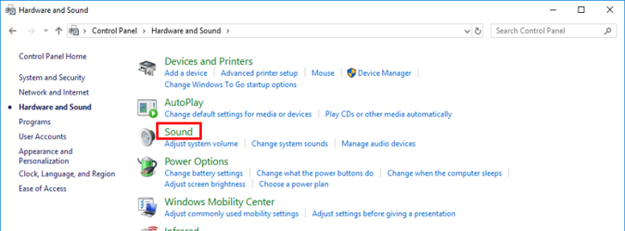
Go [Control Panel] - [Hardware and Sound] and click [Sound].
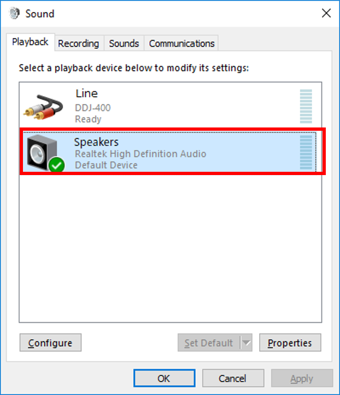
(2)If DDJ-400 has been "Default Device", go to 3.

(3)Choose other sound device rather than DDJ-400 and click "Set as Default Device".
Close the window by clicking "OK".
(4)Close the control panel and restart your computer.
[Mac]
Reload Audio MIDI settings.
(1)Connect DDJ-400 to your computer via USB cable.
(2)Open [Applications] folder, [Utilities] folder and [Audio MIDI Setup.app].
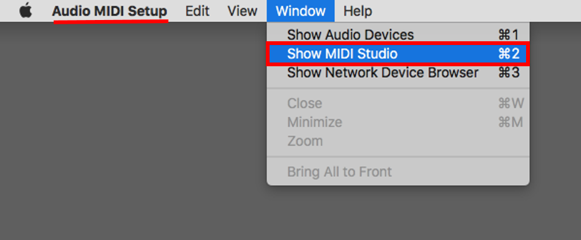
(3)Open [Audio Devices] window. Confirm that [Audio MIDI Setup] is displayed on Menu bar.
Click [Window] and choose [Show MIDI Studio] or [Show MIDI Window]. (The displayed name depends on OS version.)
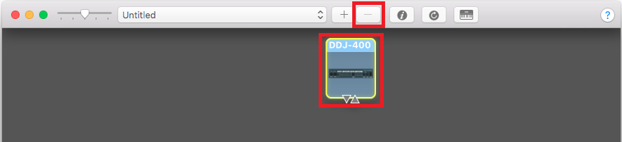
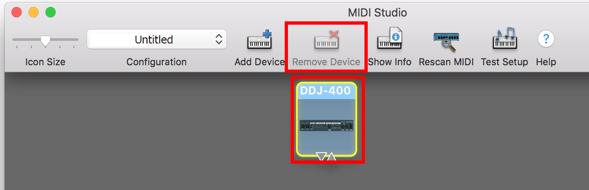
(4)[MIDI Studio] window opens up, click [DDJ-400] icon. The icon turns to blue color, click [Remove Device] or [-] icon at upper of the screen.
"DDJ-400" icon disappears and comes back again.
(5)Close [Audio MIDI Setup] and remove the USB cable from DDJ-400.
(6)Connect DDJ-400 to your computer via the USB cable and run DJ Application.
