Troubleshooting audio noise in Windows
1. Increase Audio buffer size.
・Models that support WASAPI with standard Windows drivers( DDJ-400, DDJ-SB3, DDJ-FLX 4, DDJ-FLX 6 )
[Case rekordbox]
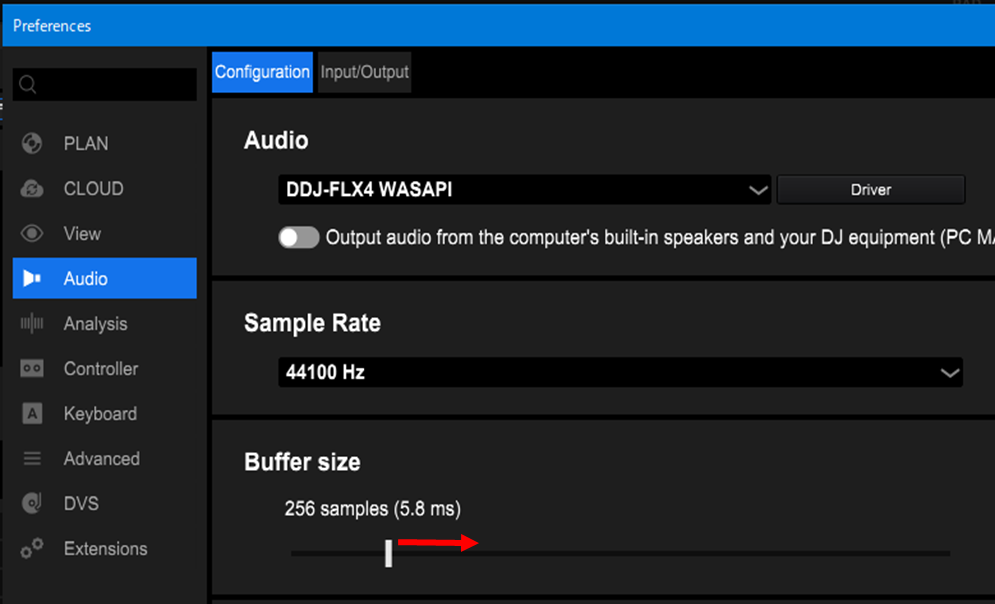
Change the Audio buffer size in rekordbox.
Open rekordbox > Preferences > Audio > Configuration panel
[Case Serato DJ Pro]
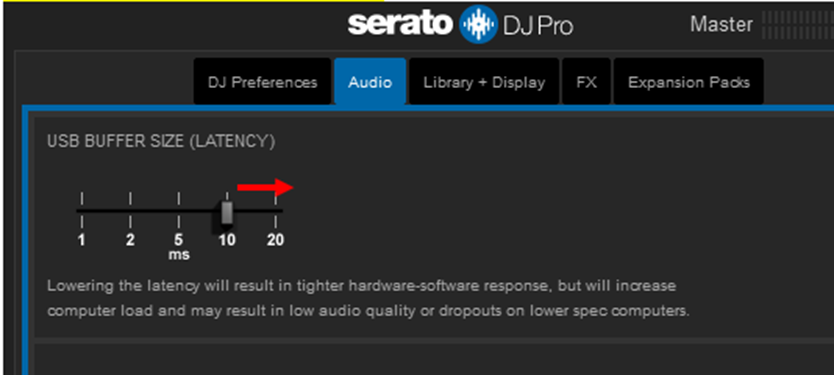
Change the Audio buffer size in Serato DJ Pro.
Setup > Audio > USB BUFFER SIZE
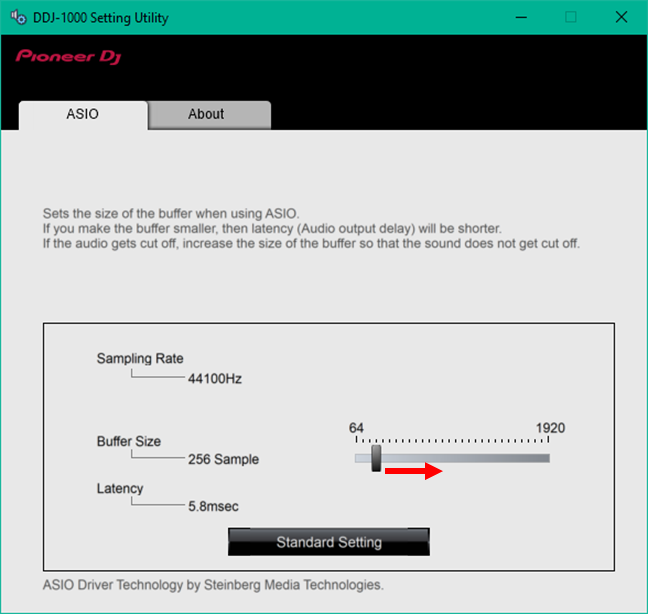
Models with its own audio driver, increase ASIO buffer size from the Setting Utility.
Below is an example of the DDJ-1000 Setting Utility.
2. Turn off applications on Windows start up
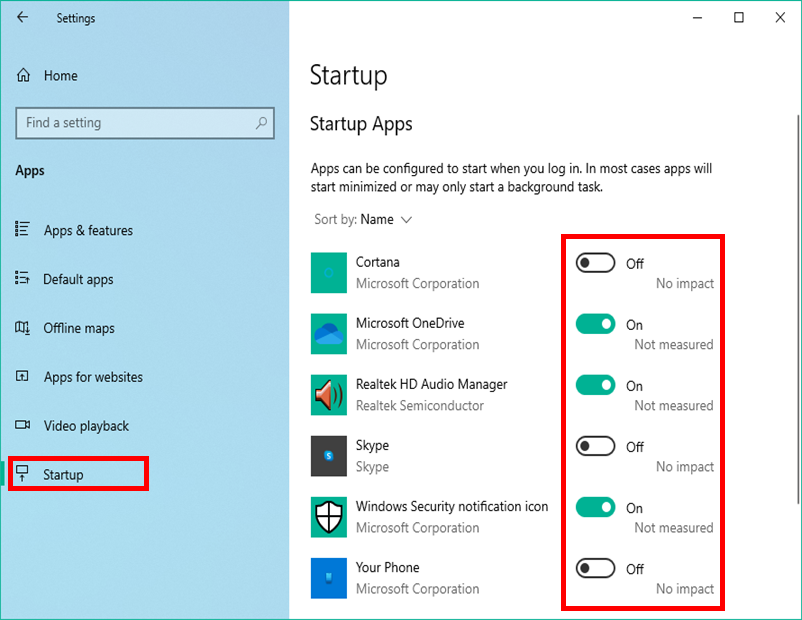
[Case Windows10]:
Start Menu > Settings > Apps > Startup, turn off apps.
[Case Windows11]:
Right-click the "Start Menu", then you will see the menu below.
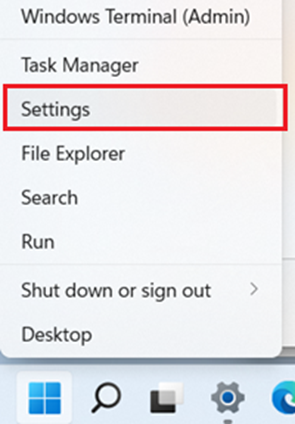
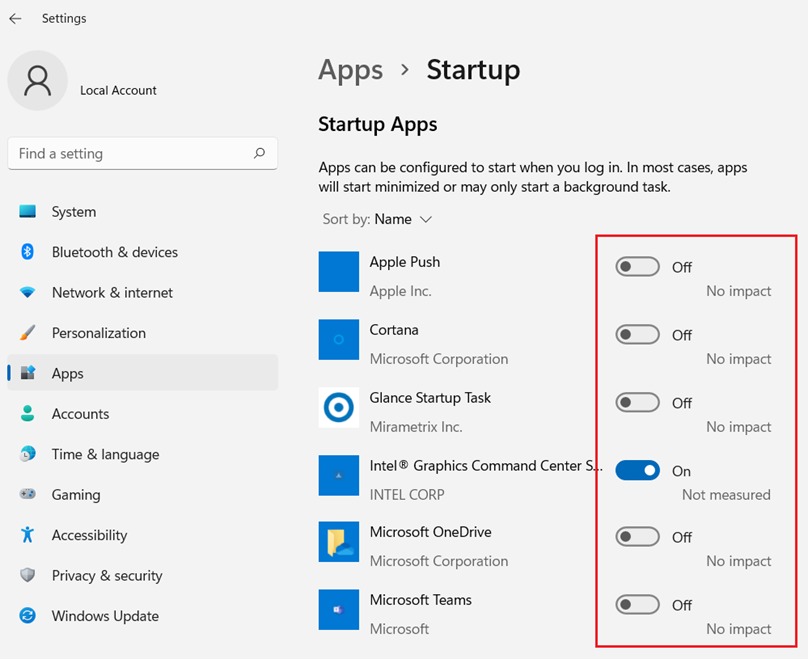
Settings > Apps > Startup
Set to “Off”, so the application does not run automatically when Windows starts up.
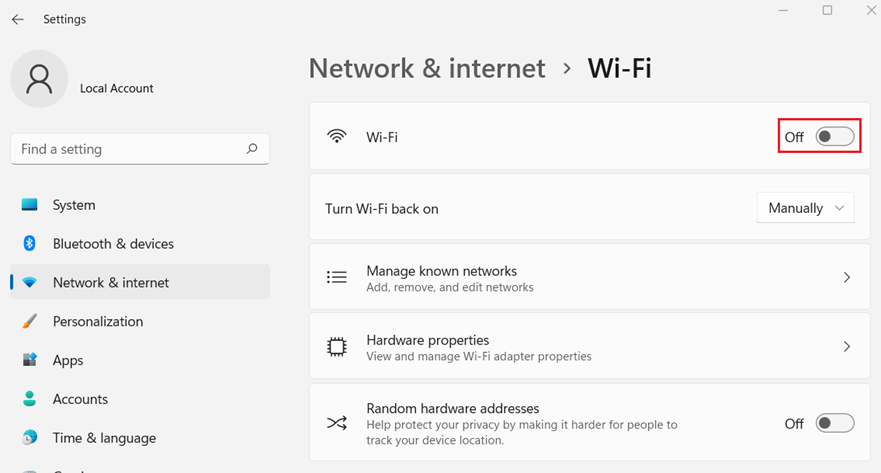
3. Turn the Wi-Fi off
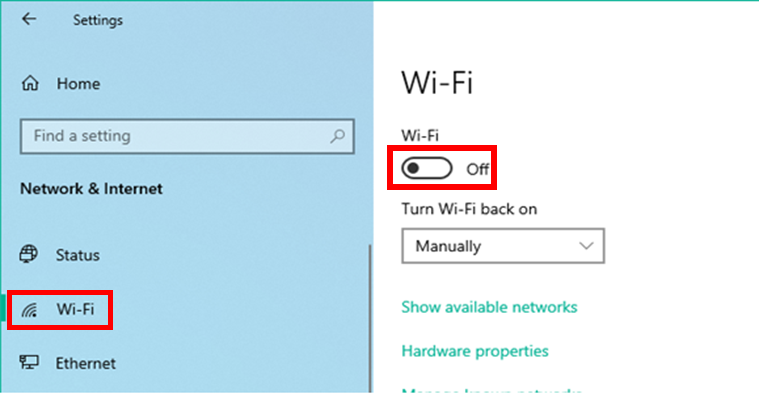
[Case Windows10]:
Go to Start Menu > Settings > Network & Internet > Turn Wi-Fi OFF
[Case Windows11]:
Right-click the "Start Menu", then you will see the menu below.
Settings > Network & Internet > Wi-Fi
Turn the Wi-Fi off
4. Disconnect the Ethernet cable
[Case Windows10]:
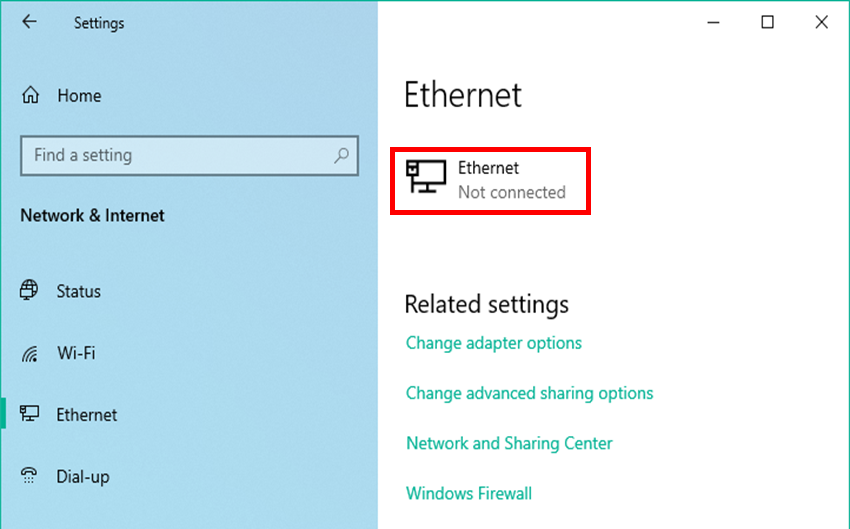
Go to Start Menu > Settings > Network & Internet > As Ethernet does not appear, the connection is disabled.
[Case Windows11]:
Right-click the "Start Menu", then you will see the menu below.
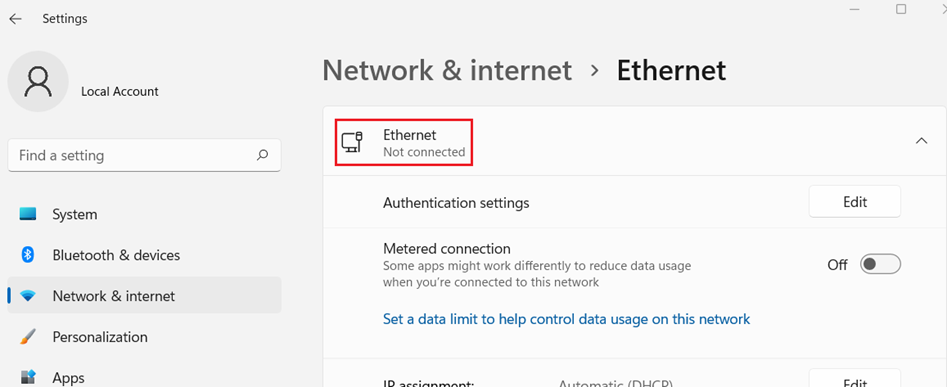
Settings > Network & Internet > Ethernet
check if you see “Not connected”.
5. Change Battery settings
[Case Windows10]:
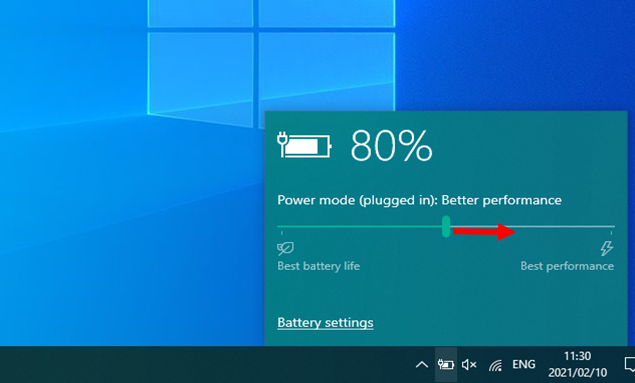
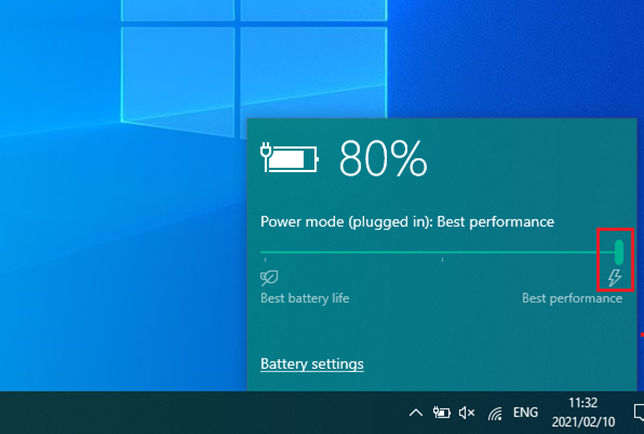
Taskbar > Click " Battery "
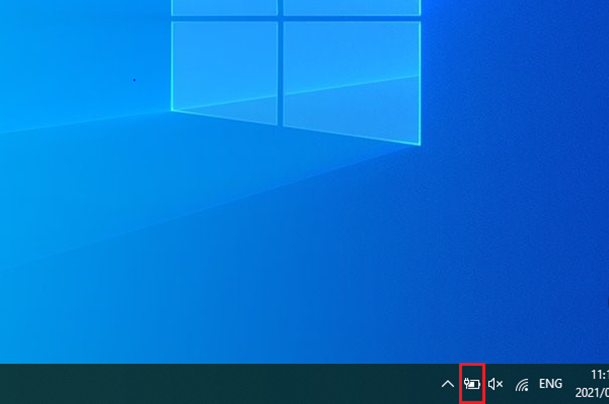
" Battery settings " Panel opens
Move the slider to the right end and set to Best Performance.

[Case Windows11]:
Right-click the "Start Menu", then you will see the menu below.
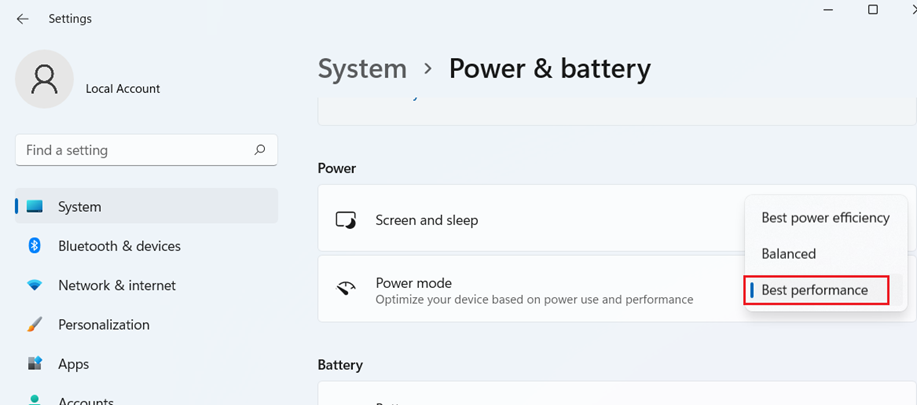
Settings > System > Power & battery > Power > Power mode
Choose “Best performance”.
6.Terminate “SysMain”
[Case Windows10]:
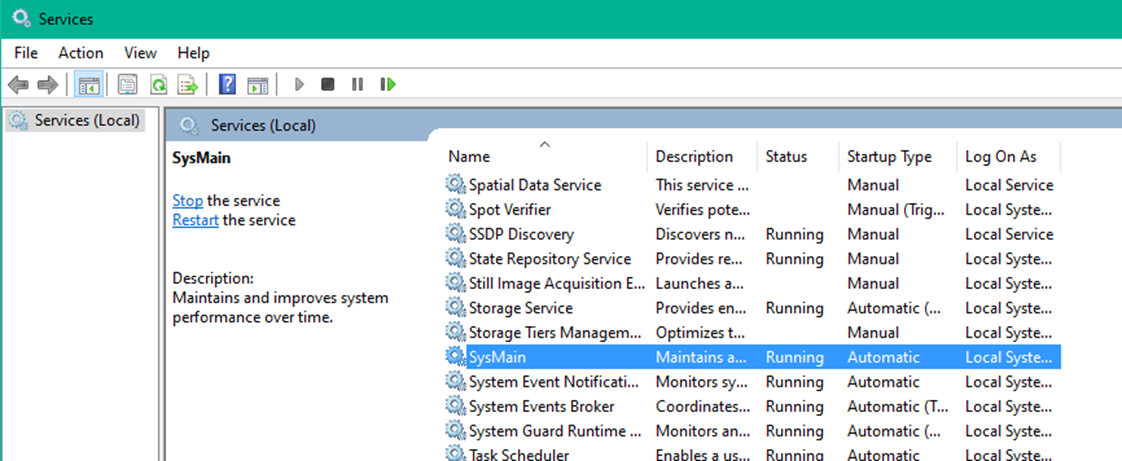
Start menu > W > Windows Administrative Tools > Services
Choose “SysMain”.
[Case Windows11]:
Start menu > All apps > W > Windows Tools > Services
Choose ”SysMain”.
Open “Property”
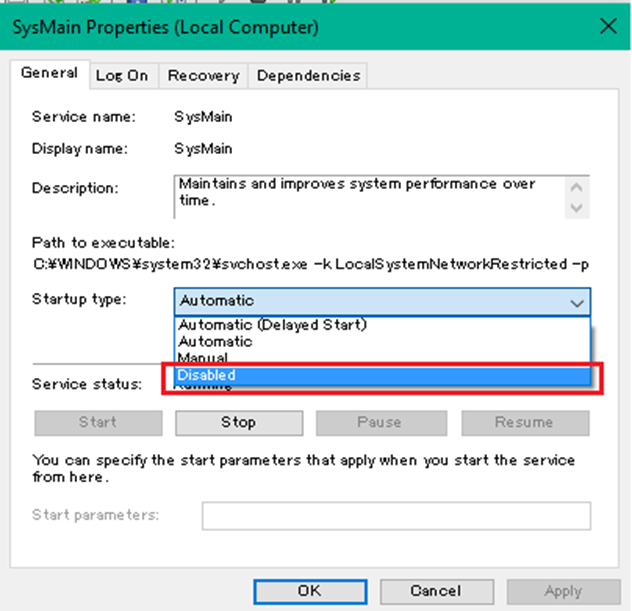
Select “Disable” on Startup Type and click “OK”.
Then restart Windows.
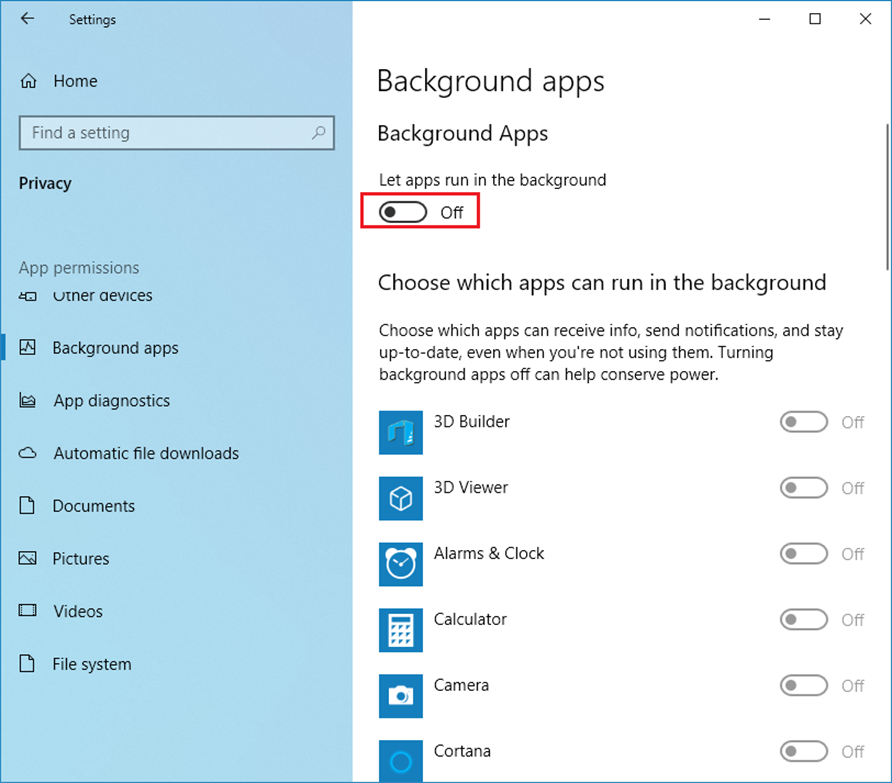
7.Stop applications running in the background
[Case Windows10]:
Go to Start Menu > Settings > Privacy > Background apps, Turn “Let apps run in the background”
OFF.
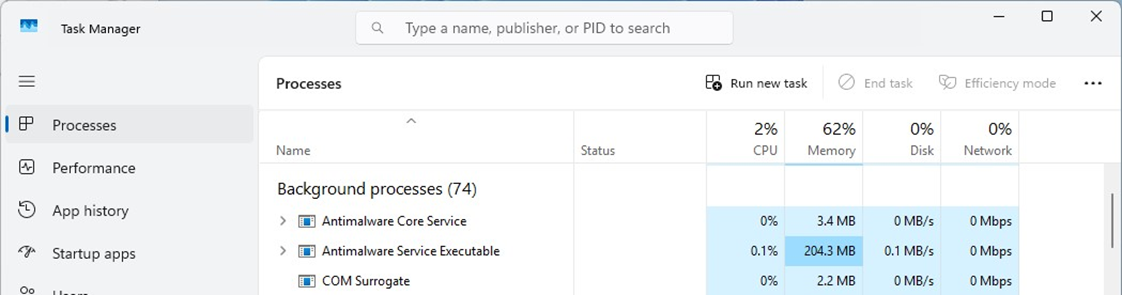
Check Background processes
[Case Windows10]:
Task Manager > Processes > View
Choose ”Group by type”.
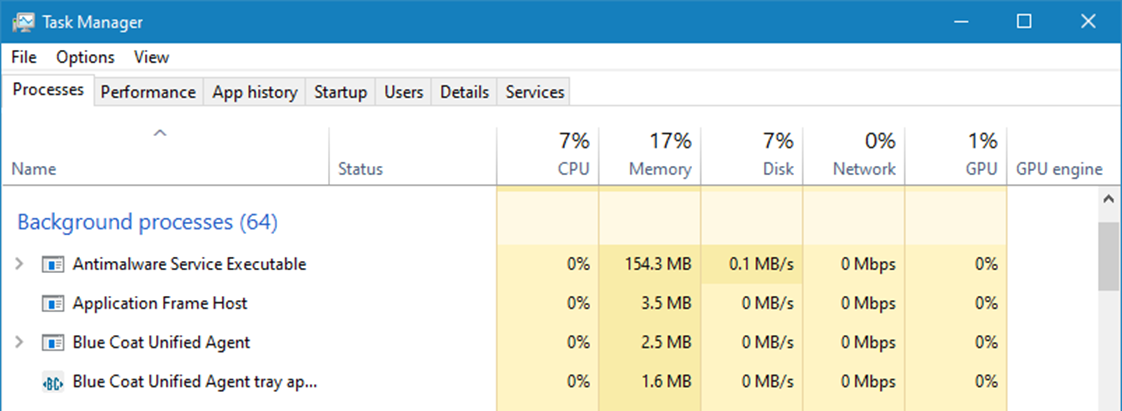
Check Background processes.
[Case Windows11]:
Checking Background processes
Task Manager > Processes > View
Choose ”Group by type".
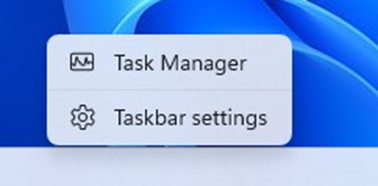
Check Background processes
8. Stop the manufacturer's support tools
[Case Windows10, Windows11]:
Right-click the "Start button", then you will see the menu below.
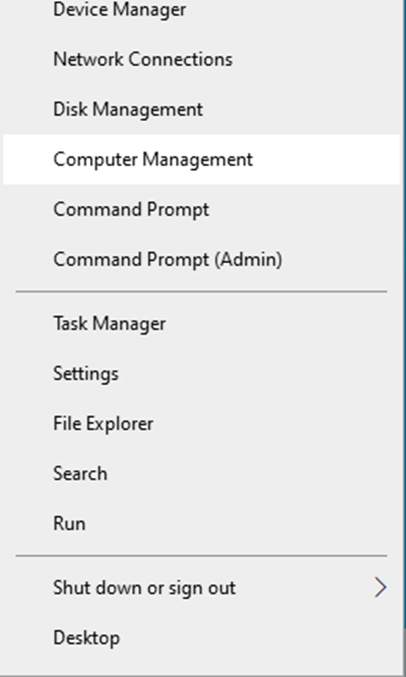
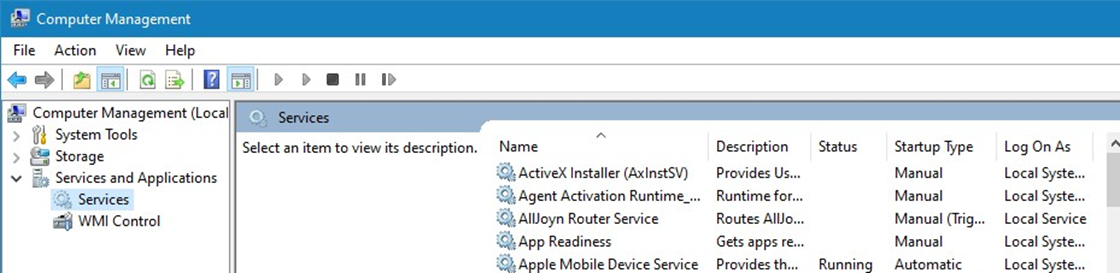
Open ”Computer Management > Services and Applications > Services”, select the PC manufacturer's assistant service, and stop the service.