Which knobs or faders should I use to adjust the sound output?
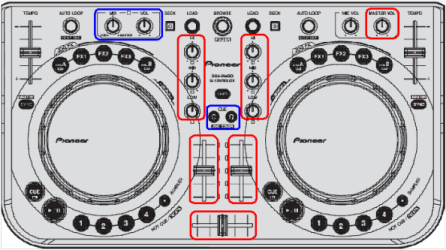
Make sure to adjust the knobs and sliders on the DDJ-WeGO device.
Master Out:
Please appropriately adjust the [EQ (HI/MID/LOW)] knobs, the channel faders and the cross fader and the [MASTER VOL] knob circled in red.
Headphone Out:
In addition to the knobs and faders adjusted in the above steps for Master Out, please appropriately adjust the Headphone Cue button, the [HEADPHONES MIX] knob and the [HEADPHONS VOL] knob circled in blue.
Functions of the controls:
Please see the "Operating Instructions" in the CD-ROM included with the product for further details.
[EQ (HI/MID/LOW)] knob: Adjusts the sound quality of each deck.
Channel fader: Adjusts the volume level output from each deck.
Crossfader: Switches the sound of the decks assigned to the right and left sides of the crossfader for output.
[MASTER VOL] knob: Adjusts the sound level output from the Master.
Headphone Cue button: Monitors the sound from each deck over the headphones.
[HEADPHONS MIX] knob: Adjusts the balance of the monitor volume between the sound of the deck whose [Headphone Cue] button is pressed and the master sound.
[HEADPHONS VOL] knob: Adjusts the audio level output from the [PHONES] output.
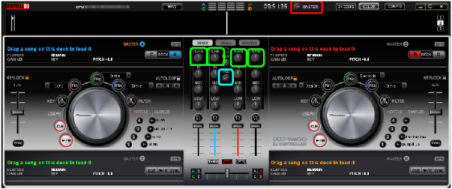
Make sure to properly adjust all the controls on Virtual DJ LE.
Some of the knobs on DDJ-WeGO are not synced with those on Virtual DJ LE even when the are connected to use them together. Please make sure to adjust such knobs on Virtual DJ.
[MASTER] circled in red: Turn this knob to the far right at MAX position. The Master Out volume level is usually adjusted on DDJ-WeGO.
[Headphones VOL] circled in blue: Turn this knob to the far right at MAX position. The Headphone volume level is usually adjusted on DDJ-WeGO.
[GAIN] circled in green: This is automatically adjusted when a track is loaded.