
Read this category first when you find any troubles.
When you find any troubles, please use the following check list.
1. Did you install the driver software?
If you use a Windows computer, you need to install an ASIO driver. If you use a Mac computer, you do not need to install the driver.
Before you install the ASIO driver, turn off the power of DDJ-WeGO and disconnect a USB cable between DDJ-WeGO and your computer. Please shut down all software on your computer if any is running.
1) Turn the power of your computer.
2) Insert a CD-ROM bundled with DDJ-WeGO.
3) Double click [Pioneer_DDJ_WeGO_Driver_XXXXX.exe]. XXXXX represents version number.
4) Follow the instruction on the display.
Please refer to the Operating Instructions as well.
The ASIO driver can be downloaded from the URL.
2. Did you finish setting up the DJ software?
Appropriate settings are required to output the sound from the Headphone and Master Out of DDJ-WeGO.
No additional setting is needed for Serato DJ Intro.
Check the settings of Virtual DJ:
If you use Virtual DJ LE Ver7.4 or later, the following process is not necessary.
When you use Windows OS:
1) Click [CONFIG] on the upper left of the computer screen.
[Settings] window appears.
Select the items below in the [Sound Setup] tab.
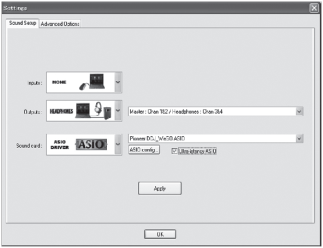
1. [Inputs]:[NONE].
2. [Sound card]:[ASIO DRIVER] and [Pioneer DDJ_WeGO ASIO].
3 [Outputs]:[HEADPHONES] and [Master: Chan 1&2/Headphones: Chan 3&4].
4. Tick [Ultra-latency ASIO].
2) Click [Apply], then [OK].
When you use Mac OS:
1) Click [CONFIG] on the upper left on the computer screen.
[Settings] window appears.
Select the items below in the [Sound Setup] tab.
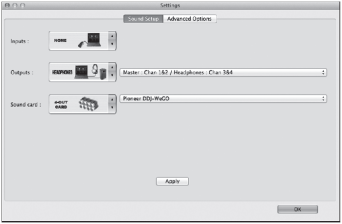
1. [Inputs]:Select [NONE].
2. [Sound card]:Select [4-OUT CARD] and [Pioneer DDJ-WeGO].
3 [Outputs]:Select [HEADPHONES] and [Master: Chan 1&2/Headphones: Chan 3&4].
2) Click [Apply], then [OK].
3. Did you launch the device in the correct order?
DDJ-WeGo should be powered on always before any DJ software is launched.
Correct order: Turn on the power of DDJ-WeGO.
When the launch illumination of DDJ-WeGO is finished, the JOG is lit in the selected color as well as the JOG FX buttons in red.
Then, launch a DJ software.
4. Is the firmware the latest?
The firmware is a system software program on the DDJ-WeGO device.
Ensure that the latest firmware is used to enhance the product's performance.
Windows
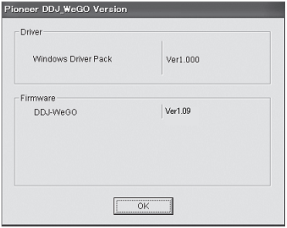
Go to [Start] menu -> [All programs] > [Pioneer] > [DDJ_WeGO] and click [DDJ Version Display Utility].
The driver software version and the firmware version of DDJ-WeGO are displayed as in the figure below.
Check if the displayed versions of both firmware and driver software are the latest.
Mac OS
1) Connect DDJ-WeGO to your computer and turn on the power of DDJ-WeGO.
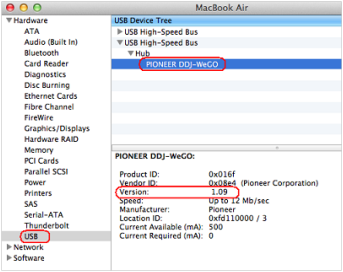
2) Open the [Applications] folder → [Utilities] folder → [System Profiler].
3) Choose [PIONEER DDJ-WeGO] from ▼Hardware - USB
Check if the displayed firmware version is the latest.
Frequently asked questions:
-DDJ-WeGO is not recognized. DDJ-WeGO does not work. (An error message appears when a DJ software is launched.
Find other symptoms:
Communicate with other users on DJing.
